Search This Blog

Showing posts with label hardware. Show all posts

Thursday, 18 August 2011

Five tips for printer sharing in Linux


Five tips for printer sharing in Linux
Takeaway: Admins often shy away from sharing a printer from Linux. Following are few simple steps that can simplify setup and sidestepping problems.
Printer sharing in Linux isn’t all that hard. But when asked to set it up, most admins would rather chew off their own arm. Why? Lack of familiarity? Ignorance? Who really knows. But the truth is, it’s not hard and it makes for an incredibly reliable service.
Let’s take a look at some tips that will make sharing out a printer from the Linux operating system much easier for both the admin and the end user.

1: Use the GUI

Both GNOME and KDE have incredibly easy graphical tools to help with the sharing of files, folders, and printers through Samba. The printer sharing feature is found in the Printer Preferences tool on both desktops and can be configured on both the printer and the server levels. The printer level is where the printer is actually shared out, whereas the server level is where a number of options can be set. Most instances will only need the printer-level settings.

2: Make sure Samba is configured properly

One of the issues you will find is that if Samba isn’t configured properly, no amount of GUI will help. This is especially true in a mixed environment. If you do have a mixed environment (especially Windows and Linux), it will be crucial that Samba is correct. Make sure the security= line uses the right mode and that files can be shared to all necessary clients. Once you’ve established that, verify that the entry for the printers is correct. You’ll be looking for two sections: [printers] and [print$]. The former is the global printer configuration and the latter is the configuration necessary for Windows clients.

3: Provide drivers

Unless you’re okay with going to every client and installing drivers for the printers, you will want to have drivers for all flavors of Windows on your printer server for use. These are configured in the [print$] directive in the smb.conf file. The most important entry in that is the path = variable. This will be where the drivers are stored. By default, this is /var/lib/samba/printers/. Make sure you have the explicit pathname to these drivers and to make your life easy, take out any spaces in the directory names for the drivers.

4: Make sure Samba is starting at boot and iptables isn’t blocking

I have found this to be a sticking point in some instances. If power goes out and the Linux machine sharing the printers goes down, Samba may not be running when the machine restarts. When this is the case, no one will be able to print. Of course, how this is done will depend upon which distribution you use. Some distributions offer a GUI tool for this task and some do not. NOTE: Do not do this through the Startup Applications GUI, as that is for user-level applications. Also, make sure your firewall isn’t blocking the ports for printer sharing. The most important port you need to have open is port 631, which is the CUPS (Common UNIX Printer System) port.

5: Grab a Web-based admin tool

CUPS offers an easy-to-use printer configuration tool. Go to http://address_to_printer_server:631 and you will find a tool that makes configuring your printers a snap. To use cups for printer sharing (UNIX to UNIX), you can use the cupsctl command (man cupsctl for more information). For UNIX-to-Windows or UNIX-to-Mac printer sharing, you will need to use a Web-based tool like Webmin. NOTE: When using Webmin, your smb.conf fill will be rewritten. I would make a copy of that file before using Webmin. Samba used to have a tool called Swat for Samba printer sharing setup, but that tool is no longer maintained.

Avoiding problems

As we all know, printing is one of those administrative tasks that can go wrong for so many reasons. Add the layer of multiple platforms and the level of challenge grew even greater. But with the above tips, you should be five steps closer to having your Samba printer server up and running.
**************************
Thursday, 7 July 2011

The Pros and Cons of Tower, Rack, and Blade Servers

The Pros and Cons of Tower, Rack, and Blade Servers

There are three main choices when it comes to buying a new server: tower, rack, or blade. Here are some of the pros and cons about each kind of server.

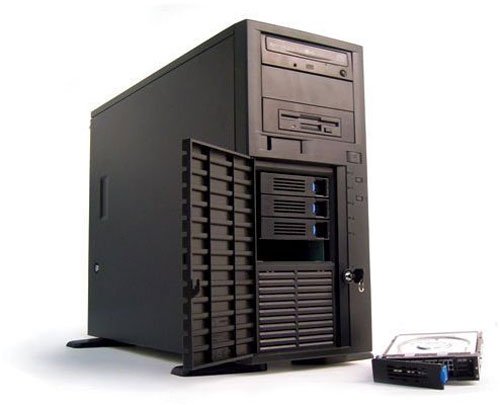
Tower servers :-
Tower Server
Tower servers seem dated and look more like desktops than servers, but these servers can pack a punch. In general, if you have a lot of servers, you’re probably not using a bunch of tower servers, because they can take up a lot of space and are tough to physically manage since you can’t easily stack them on one another. In some cases as organizations grow and move to rack servers, conversion kits can be purchased to turn a tower server into a rack-mount server.

As implied, tower servers are probably found more often in smaller environments than anywhere else, although you might find them in point solutions in larger places.

Tower servers are generally on the lower end price-wise, although they can expand pretty decently and become really expensive.Tower servers take up a lot of space and require individual monitors, keyboards, and mice or a keyboard, video, mouse (KVM) switch that allows them to be managed with a single set of equipment. In addition, cabling can be no fun, especially if you have a lot of network adapters and other I/O needs. You’ll have cables everywhere.


Rack servers :-
Rack Server
If you run a data center of any reasonable size, you’ve probably used a lot of industry standard 19″ wide rack servers. Sized in Us (which is a single 1.75″ rack unit), rack servers can range from 1U “pizza boxes” to 5U, 8U, and more. In general, the bigger the server, the more expansion opportunities are available.

Rack servers are extremely common and make their home inside these racks along with other critical data center equipment such as backup batteries, switches, and storage arrays. Rack servers make it easy to keep things neat and orderly since most racks include cable management of some kind. However, rack servers don’t really simplify the cabling morass since you still need a lot of cabling to make everything work — it’s just neater. I once worked in a data center in which I had to deploy 42 2U Dell servers into three racks. Each server had to have dual power cables, keyboard, video, and mouse cables and six (yes, six) network cables (six colors with each color denoting a specific network). It was a tough task to keep the cabling under control, to put it mildly. Because everything was racked, there was built-in cable management that made this easier.

Like tower servers, rack servers often need KVM capability in order to be managed, although some organizations simply push a monitor cart around and connect to video and USB ports on the front of the server so that they don’t need to worry about KVM.Rack servers are very expandable; some include 12 or more disks right in the chassis and support for four or more processors, each with multiple cores. In addition, many rack servers support large amounts of RAM, so these devices can be computing powerhouses.


Blade servers :-
Blade Server
There was a day when buying individual blade servers meant trading expansion possibilities for compactness. Although this is still true to some extent, today’s blade servers pack quite a wallop. I recently purchased a half-height Dell M610 blade server with 96 GB of RAM and two six-core processors.

There is still some truth to the fact that blade servers have expansion challenges when compared to the tower and rack-based options. For example, most tower servers have pretty significant expansion options when it comes to PCI/PCI Express slots and more disk drives. Many blade servers are limited to two to four internal hard drives, although organizations that use blade servers are likely to have shared storage of some kind backing the blade system.

Further, when it comes to I/O expansion options, blade servers are a bit limited by their lack of expansion slots. Some blade servers boast PCI or PCI Express expansion slots, but for most blade servers, expansion is achieved through the use of specially designed expansion cards. In my case, the Dell M600 and M610 blades have three mezzanines. The first mezzanine consists of dual Gigabit Ethernet adapters. The remaining mezzanines are populated based on organizational need. The blade server doesn’t have quite the I/O selection of other server form factors, it’s no slouch, either.

When raw computing power and server density is the key drive, blade servers meet the need. For example, I have a 10U Dell M1000e blade chassis that can support up to 16 servers. So, each server uses the equivalent of 0.625U of rack space. On top of that, the blade chassis holds four gigabit Ethernet switches and two Fibre Channel switches, so there is additional rack space savings since I don’t need to rack mount these devices to support different connectivity options. In addition, the blade chassis has a built-in KVM switch so I don’t need to buy a third party and cable it up.

Speaking of cabling, a blade environment generally has much less of it than tower or rack environments since a lot of the connectivity is handled internally. You’ll end up with a neater server room as a result.

Another point is adding a new server consists of simply sliding it into an available slot in the chassis. There is no need to rack a new server and deal with a bunch of new cabling. This small size makes heat dissipation a challenge. Blade chassis can put out a lot of heat.

From a cost perspective, blade servers require some initial infrastructure, such as the chassis, so the upfront cost is often higher than for servers of other types.


Bottom line :-

If you need one or two servers, a tower solution probably makes sense. If you need three to 24 servers or massive scalability, then rack servers are for you. When you go need more than 24 servers, I advise you to consider a blade solution to meet your data center needs.

*******************************

Sunday, 3 July 2011

Top 5 Gaming Consoles

Top 5 Gaming Consoles

(Note : Not placed according to the ranks,just randomly.)


1. Sony PSP-3000 :
Sony PSP-3000
This solid portable media device is ideal for game lovers. This gaming console is an improved version of its predecessors with improved battery life and AV output are some of its improvements.

Some of the features of this hand held console are:

  • Built-in Microphone that can be used for Skype.
  • Anti glare Screen.
  • Sleeker Design and finish.
  • Non HDTV output.
  • Improved LCD output.
  • Anti Reflective Technology to suit for outdoor gaming.
  • Increased battery backup.


2. Nintendo Wii :
Nintendo Wii
This home video gaming console that is introduced by Nintendo in 2006. This console directly competes with Microsoft’s Xbox and Sony’s Playstation 3.

The features of this console are:

  • The most outrageous feature of this console is that it can be used as a wireless controller and can be used as a pointing device and 3 dimensional controller.
  • WiiConnect24, this feature of the console enables users to receive updates and messages, when the console is in standby mode.
  • Backward Compatible with all the earlier devices with Official Nintendo Game Cube software.
  • Wii Menu is the state of the art interface that is designed by taking the concept of television channels in mind. The programs are featured in a grid and can be navigated using the Wii remote.
  • Better Parental Controls to prevent the young and sensitive viewers from the cases of violence and sex.
  • 2 USB ports, 512 MB internal memory, IBM powered CPU, Game Cube Memory Card and Bluetooth.


3.  Xbox 360 :
Xbox 360
This is the Microsoft’s presentation of the next generation gaming consoles. This is the seventh generation gaming console and is competing with Playstation and Wii.

The features of this gaming console are:

  • Integrated Xbox Live service that allows players to play online and download apps and movies.
  • Windows Media Center enabled services are available.
  • Wi fi enabled.
  • Multiple USB Ports.
  • 4 GB internal memory.
  • Touch-sensitive buttons.
  • Available in several versions and prices depends upon the size of Hard Disk and Processor used.


4. PlayStation 3 :
PlayStation 3
This the world most popular and widely used gaming console in the entire world. This is developed by Sony Computer Entertainment and is abbreviated as PS. The Playstation has come over the three generations and the latest offering is PlayStation 4.

The main features of this console are:

  • Connectivity to portable Playstation (PSP) using PlayStation Network.
  • Blu ray Disc which offers crystal clear High Definition movies and high quality audio.
  • Rich multimedia functionality with quality audio and video output along with 3 D experience.
  • Internet ready and latest updates and patches can be downloaded from net.
  • Customization of the XMB Home Menu.
  • Advanced Photo Management.
  • Prices vary from model to model and depends upon the memory used and processor.


5. Nintendo DSi :
Nintendo DSi
This handheld gaming console that’s offered by Nintendo. It was released in 2009 and offers a stiff competition to Sony’s PlayStation Portable. This is the seventh generation gaming console.

Its main features are:

  • Extensive and improved Multimedia features.
  • Better graphics display and faster rendering.
  • Two large LCD screens.
  • 0.3 Megapixel camera which is its down point.
  • No backward compatibility with Game Boy Advance Games.
  • Wi-fi and Bluetooth enabled.
  • Low battery backup and not so great security features.


    ********************************

15 Powerful Graphic Cards for Gaming, Videos, Animation, etc.

15 Powerful Graphic Cards for Gaming, Videos, Animation, etc.

Here is a list of few graphic cards which I think is best for gaming,video editing,animation,etc. They are not placed according to the ranks, just randomly. These graphic cards are best for those who want to spend less and want good performance.

(Note : Google for their additional information because if I do then this blog will be very long.)


1. ATI Radeon HD 5970
ATI Radeon HD 5970
This is one of the best graphics card in the computer industry. It has a twin pair GPUs that makes it’s the fastest and powerful in the world. This twin GPU powered beauty is capable of performing several instructions at a time. The GPU are packed on a single PCB thereby reducing noise and heat.


2. Nvidia GeForce GTX 480
Nvidia GeForce GTX 480
This one of the best examples of first generation Graphics cards built on Fermi architecture. The card is capable of handling complex instructions and geometrical models, when combined with Microsoft’s DirectX 11. Other features include Nvidia’s 3D Vision surround and ray tracing in real time. Ideal for gamers.


3. AMD Radeon HD 6870
AMD Radeon HD 6870
This is another offering from AMD. This card is driven by BARTS GPU. The card will fill the gap become between 6800 and 5000 series. The card introduces the AMD’s passive 3D technology and also supports HDMI output for Blue Ray DVDs.


4. Nvidia GeForce GTX 470
Nvidia GeForce GTX 470
This is the most affordable high-end Fermi card that is available in the market. GTX 470 is the cut out version of its big brother GTX 480. The card supports a resolution of 1680×1050. The card has its clock speed of 607 MHz with 448 cores along with 1.2 GB of GDDR5 memory.


5. Nvidia GeForce GTX 460 1GB
Nvidia GeForce GTX 460 1GB
This is 1 GB version of GTX 470 and is powered by GF104 GPU. This card is less powerful and is for those in $150-200 segment. With seven streaming microprocessors (SM), there has been lot improvement as compared to its predecessors. The SMs hold the CUDA cores and special Functional Units (FU) which performs all this graphics operations.


6. AMD Radeon HD 6850
AMD Radeon HD 6850
This card seems to give a tough competition to GTX 460 series, even though it is far more expensive than latter. This card like its other members boasts of new Anti-Aliasing mode or better known as MorphoLogical Anti-Aliasing. The card is capable of handling resolutions up to 1920×1200. The GPU of this card is BARTS XT and memory of 1Gb of GDDR5.


7. AMD Radeon HD 5770
AMD Radeon HD 5770
This is a slightly watered down version of HD 5870. This card has entered lately into graphics arena but due to its excellent performance and efficiency, has become best value for money. The card boasts features more or less similar to HD 5870 and supports resolutions up to 1680×1050.


8. Nvidia GeForce GTS 450
Nvidia GeForce GTS 450
This is the NVIDIA’s offering on lower price cards that are built on Fermi architecture. The card is well suited for gamers with tighter budgets. The card is capable of supporting resolutions upto 1680×1050.


9. Nvidia Geforce GT 430
Nvidia Geforce GT 430
This card is at the lower segment of Nvidia’s DX11 class products. The card is not only for gamers, but can also cater to those using normal PCs and laptops. It offers a value for money for this segment. This card is not really a gamer choice, but it can solve various purposes for a normal user with moderate needs.


10. AMD Radeon HD 5750
AMD Radeon HD 5750
This is another card that is not suited best for gamers. It is mainly focused for normal PC users who just want to have a rich multimedia experience. The card can support resolutions up to 1680×1050. The effects like Tessellation and Multi-Threading Rendering require more resource overheads.


11. Sapphire Vapor-X Radeon HD 5870
Sapphire Vapor-X Radeon HD 5870
This card with a clock speed of 870 MHz is focused for hard core gamers and for those who want to get high-end DirectX 11 card with over clocking potentials. The card has twin dual link ports for HDMI, DVI and other format outputs.


12. Nvidia GTX 275
Nvidia GTX 275
This card is offers some of its DX10 performance with support for 1920×1200 resolution without any hassles. The card also has added features like PhysX and CUDA capabilities.


13. AMD Radeon HD 4890
AMD Radeon HD 4890
This product is the incremental update of Radeon HD 4870. Yet it is a powerful and efficient product. The product has 1 GB memory which is not ideal for gaming, but it can be ideal for photos and other videos.


14. Nvidia GTX 295
Nvidia GTX 295
This stunning black looking card is neatly packed in its monolithic casing making it distinct from others. Having clock speed of 576 MHz with total memory of 1.5 GB.


15. AMD Radeon 4870 X2
AMD Radeon 4870 X2
This is the result of years of hard work and research on multi GPU on a single PCB. This card was not able to handle the DX11 issues effectively, but this card is best suited for general purpose performances.


***************************

Thursday, 2 June 2011

Five tips for freeing up PC hard disk space


Five tips for freeing up PC hard disk space

NOTE: Before you attempt to use any of these techniques, you should perform a full system backup.

1) Clear application caches:-

If you want to free up hard disk space, you should start out by clearing any application caches that might exist. Application caches can contain a lot of data. For example, some older versions of Internet Explorer are designed to consume up to 10% of your total hard disk space with temporary files. Newer versions use a default cache size of 50 MB.A better example is a video editing application I frequently use. This application caches all source video files. The last time that I cleaned out the cache, I managed to recover almost 200 GB of disk space.

2) Look for signs of disk corruption and system upgrades:-

Hard disk corruption and operating system upgrades can both cause disk space to be wasted. I recommend opening a command prompt window and executing CHKDSK with the /F switch. This will cause Windows to scan the hard disk for corruption and repair any problems that it might find. (Be sure to make a backup first.) In certain situations, this can free up quite a bit of disk space.
Even if no corruption is detected, that doesn’t mean that no corruption has occurred in the past. When CHKDSK encounters files that can’t be repaired, it stores the file fragments in .CHK files. Unless you are attempting to recover lost data, you can safely delete any .CHK files you find on the system. While you’re at it, you might also look for temporary files (.TMP files) and log files (.LOG files), both of which can usually be safely deleted.Another thing to check for is an old Windows installation. If Windows is reinstalled (or if a new version of Windows is installed) from outside the Windows operating system, Setup will attempt to preserve the previous operating system by creating a folder named Windows.old. As long as you don’t need anything from the previous Windows installation, you can safely delete the Windows.old folder.

3) Run Disk Cleanup:-

Desktop versions of Windows come equipped with a tool called the Disk Cleanup Wizard. It searches the system for unneeded files that are safe to delete (such as memory dump files). You can run the Disk Cleanup Wizard by opening My Computer, right-clicking on the drive you want to clean, and choosing the Properties command from the shortcut menu. When the drive’s properties sheet opens, click the Disk Cleanup button on the General tab.

4) Look for unneeded applications:-

Almost every new PC includes a ton of trial applications and nagware that are installed by default. I always recommend blanking the hard drive on a new PC and starting with a clean Windows installation, but often times I encounter PCs that are still running the factory configuration.In these situations, you can go through the Control Panel and remove any of the trial applications that are not being used (as well as the nagware). While you’re at it, check for any other applications that might have been installed by the system’s owner but that are no longer used.If the system contained a Windows.old folder, there’s a good chance that there are also application remnants in the Program Files folder. These remnants won’t appear in the Control Panel because the applications were installed on the old operating system. The only way to get rid of them is to manually delete them from the Program Files folder.

5) Remove manufacturer partitions:-

In addition to all the trial applications and nagware that manufacturers install on PC hard drives, PCs usually contain a recovery partition. This partition exists so that the PC can be reset to factory defaults in the event of a problem. In some cases, it may be possible to delete the recovery partition and then merge the empty space with another volume on the system. I prefer to just back up the system, delete all the partitions, create one big partition, and then restore the backup.Of course, if you get rid of the recovery partition, you can’t use it to rebuild the system. As long as you have a Windows installation DVD, that shouldn’t be a problem (unless you actually want some of the applications that are loaded on the system by default). The recovery partition is often outdated anyway. For example, if a system shipped with Windows Vista but has been upgraded to Windows 7, the recovery partition will contain an outdated operating system (Vista).

Don’t forget to defrag:-
All of these techniques have the potential to recover quite a bit of lost hard disk space. Any time you manage to recover a significant amount of disk space, it is a good idea to defragment the system afterward.

Tuesday, 24 May 2011

What is RAM (Random Access Memory)?....Types of RAMs?


Definition:- 
Random-access memory (RAM) is a form of temporary computer data storage.A type of computer memory that can be accessed randomly, that is, any byte of memory can be accessed without touching the preceding bytes.RAM is the most common type of memory found in computers and other devices, such as printers. It is a volatile memory storage, that is, data is lost when power is turned off.
RAMs
--------------------------------------------------------------

Some other uses of RAM:-
In addition to serving as temporary storage and working space for the operating system and its applications, RAM is used in numerous other ways.

1) Virtual memory
Most modern operating systems employ a method of extending RAM capacity, known as "virtual memory". A portion of the computer's hard drive is set aside for a paging file or a scratch partition, and the combination of physical RAM and the paging file form the system's total memory. (For example, if a computer has 2 GB of RAM and a 1 GB page file, the operating system has 3 GB total memory available to it.) When the system runs low on physical memory, it can "swap" portions of RAM to the paging file to make room for new data, as well as to read previously swapped information back into RAM. Excessive use of this mechanism results in thrashing and generally hampers overall system performance, mainly because hard drives are far slower than RAM.

2) RAM disk
Software can "partition" a portion of a computer's RAM, allowing it to act as a much faster hard drive that is called a RAM disk. A RAM disk loses the stored data when the computer is shut down, unless memory is arranged to have a standby battery source.

3) Shadow RAM
Sometimes, the contents of a relatively slow ROM chip are copied to read/write memory to allow for shorter access times. The ROM chip is then disabled while the initialized memory locations are switched in on the same block of addresses (often write-protected). This process, sometimes called shadowing, is fairly common in both computers and embedded systems.As a common example, the BIOS in typical personal computers often has an option called “use shadow BIOS” or similar. When enabled, functions relying on data from the BIOS’s ROM will instead use DRAM locations (most can also toggle shadowing of video card ROM or other ROM sections). Depending on the system, this may not result in increased performance, and may cause
incompatibilities. For example, some hardware may be inaccessible to the operating system if shadow RAM is used. On some systems the benefit may be hypothetical because the BIOS is not used after booting in favor of direct hardware access. Free memory is reduced by the size of the shadowed ROMs.

-------------------------------------------------------------------

Two most common types of RAM are:-


SRAM :- 
Static random access memory uses multiple transistors, typically four to six, for each memory cell but doesn't have a capacitor in each cell. It is used primarily for cache. It is made up of flip flops due to which no refresh cycle is needed, due to this SRAM is faster than DRAM. SRAM can give access times as low as 10 nanoseconds.Each bit in an SRAM is stored on four transistors that form two cross-coupled inverters. This storage cell has two stable states which are used to denote 0 and 1. Two additional access transistors serve to control the access to a storage cell during read and write operations. A typical SRAM uses six MOSFETs to store each memory bit.The most prominent use of SRAM is in the cache memory of processors where speed is very essential, and the low power consumption translates to less heat that needs to be dissipated. Even hard drives, optical drives, and other devices that needs cache memory or buffers use SRAM modules.


DRAM :-
Dynamic random access memory has memory cells with a paired transistor and capacitor requiring constant refreshing. As DRAM requires constant refreshing, therefore these RAMs are slower than SRAMs. DRAM supports access times of about 60 nanoseconds. It requires more power. The advantage of DRAM is its structural simplicity: only one transistor and a capacitor are required per bit.Because of its lower price, DRAM has become the mainstream in computer main memory despite being slower and more power hungry compared to SRAM.

------------------------------------------------------------------

Other types of RAM are :-

FPM DRAM:-
Fast page mode dynamic random access memory was the original form of DRAM. It waits through the entire process of locating a bit of data by column and row and then reading the bit before it starts on the next bit. Maximum transfer rate to L2 cache is approximately 176 MBps.EDO DRAM: Extended data-out dynamic random access memory does not wait for all of the processing of the first bit before continuing to the next one. As soon as the address of the first bit is located, EDO DRAM begins looking for the next bit. It is about five percent faster than FPM. Maximum transfer rate to L2 cache is approximately 264 MBps.

SDRAM:-
Synchronous dynamic random access memory takes advantage of the burst mode concept to greatly improve performance. It does this by staying on the row containing the requested bit and moving rapidly through the columns, reading each bit as it goes. The idea is that most of the time the data needed by the CPU will be in sequence. SDRAM is about five percent faster than EDO RAM and is the most common form in desktops today. Maximum transfer rate to L2 cache is approximately 528 MBps.

DDR SDRAM:-
Double data rate synchronous dynamic RAM is just like SDRAM except that is has higher bandwidth, meaning greater speed. Maximum transfer rate to L2 cache is approximately 1,064 MBps (for DDR SDRAM 133 MHZ).

RDRAM:-
Rambus dynamic random access memory is a radical departure from the previous DRAM architecture. Designed by Rambus, RDRAM uses a Rambus in-line memory module (RIMM), which is similar in size and pin configuration to a standard DIMM. What makes RDRAM so different is its use of a special high-speed data bus called the Rambus channel. RDRAM memory chips work in parallel to achieve a data rate of 800 MHz, or 1,600 MBps. Since they operate at such high speeds, they generate much more heat than other types of chips. To help dissipate the excess heat Rambus chips are fitted with a heat spreader, which looks like a long thin wafer. Just like there are smaller versions of DIMMs, there are also SO-RIMMs, designed for notebook computers.

Credit Card Memory:-
Credit card memory is a proprietary self-contained DRAM memory module that plugs into a special slot for use in notebook computers.

PCMCIA Memory Card:-
Another self-contained DRAM module for notebooks, cards of this type are not proprietary and should work with any notebook computer whose system bus matches the memory card's configuration.

CMOS RAM:-
CMOS RAM is a term for the small amount of memory used by your computer and some other devices to remember things like hard disk settings,sytems clock settings,etc. This memory uses a small battery to provide it with the power it needs to maintain the memory contents.

VRAM:-
VideoRAM, also known as multiport dynamic random access memory (MPDRAM), is a type of RAM used specifically for video adapters or 3-D accelerators. The "multiport" part comes from the fact that VRAM normally has two independent access ports instead of one, allowing the CPU and graphics processor to access the RAM simultaneously. VRAM is located on the graphics card and comes in a variety of formats, many of which are proprietary. The amount of VRAM is a determining factor in the resolution and color depth of the display. VRAM is also used to hold graphics-specific information such as 3-D geometry data and texture maps. True multiport VRAM tends to be expensive, so today, many graphics cards use SGRAM (synchronous graphics RAM) instead. Performance is nearly the same, but SGRAM is cheaper.

Reasons To Why PCs Crash???


10 reasons why PCs crash.........
PC Crash


BSOD
Fatal error: the system has become unstable or is busy," it says. "Enter to return to Windows or press Control-Alt-Delete to restart your computer. If you do this you will lose any unsaved information in all open applications."


You have just been struck by the Blue Screen of Death. Anyone who uses MS Windows will be familiar with this. What can you do? More importantly, how can you prevent it happening?


1) Hardware conflict:-


The number one reason why Windows crashes is hardware conflict. Each hardware device communicates to other devices through an interrupt request channel (IRQ). These are supposed to be unique for each device.
For example, a printer usually connects internally on IRQ 7. The keyboard usually uses IRQ 1 and the floppy disk drive IRQ 6. Each device will try to hog a single IRQ for itself.
If there are a lot of devices, or if they are not installed properly, two of them may end up sharing the same IRQ number. When the user tries to use both devices at the same time, a crash can happen. The way to check if your computer has a hardware conflict is through the following route:


 Start-Settings-Control Panel-System-Device Manager.


Often if a device has a problem a yellow '!' appears next to its description in the Device Manager. Highlight Computer (in the Device Manager) and press Properties to see the IRQ numbers used by your computer. If the IRQ number appears twice, two devices may be using it.
Sometimes a device might share an IRQ with something described as 'IRQ holder for PCI steering'. This can be ignored. The best way to fix this problem is to remove the problem device and reinstall it.
Sometimes you may have to find more recent drivers on the internet to make the device function properly. A good resource is www.driverguide.com. If the device is a soundcard, or a modem, it can often be fixed by moving it to a different slot on the motherboard (be careful about opening your computer, as you may void the warranty).
When working inside a computer you should switch it off, unplug the mains lead and touch an unpainted metal surface to discharge any static electricity.
To be fair to Mcft, the problem with IRQ numbers is not of its making. It is a legacy problem going back to the first PC designs using the IBM 8086 chip. Initially there were only eight IRQs. Today there are 16 IRQs in a PC. It is easy to run out of them. There are plans to increase the number of IRQs in future designs.


2) Bad Ram:-


Ram (random-access memory) problems might bring on the blue screen of death with a message saying Fatal Exception Error. A fatal error indicates a serious hardware problem. Sometimes it may mean a part is damaged and will need replacing.
But a fatal error caused by Ram might be caused by a mismatch of chips. For example, mixing 70-nanosecond (70ns) Ram with 60ns Ram will usually force the computer to run all the Ram at the slower speed. This will often crash the machine if the Ram is overworked.
One way around this problem is to enter the BIOS settings and increase the wait state of the Ram. This can make it more stable. Another way to troubleshoot a suspected Ram problem is to rearrange the Ram chips on the motherboard, or take some of them out. Then try to repeat the circumstances that caused the crash. When handling Ram try not to touch the gold connections, as they can be easily damaged.
Parity error messages also refer to Ram. Modern Ram chips are either parity (ECC) or non parity (non-ECC). It is best not to mix the two types, as this can be a cause of trouble.
EMM386 error messages refer to memory problems but may not be connected to bad Ram. This may be due to free memory problems often linked to old Dos-based programmes.


3) BIOS settings:-


Every motherboard is supplied with a range of chipset settings that are decided in the factory. A common way to access these settings is to press the F2 or delete button during the first few seconds of a boot-up.
Once inside the BIOS, great care should be taken. It is a good idea to write down on a piece of paper all the settings that appear on the screen. That way, if you change something and the computer becomes more unstable, you will know what settings to revert to.
A common BIOS error concerns the CAS latency. This refers to the Ram. Older EDO (extended data out) Ram has a CAS latency of 3. Newer SDRam has a CAS latency of 2. Setting the wrong figure can cause the Ram to lock up and freeze the computer's display.
Mcft Windows is better at allocating IRQ numbers than any BIOS. If possible set the IRQ numbers to Auto in the BIOS. This will allow Windows to allocate the IRQ numbers (make sure the BIOS setting for Plug and Play OS is switched to 'yes' to allow Windows to do this.).


4 Hard disk drives:-


After a few weeks, the information on a hard disk drive starts to become piecemeal or fragmented. It is a good idea to defragment the hard disk every week or so, to prevent the disk from causing a screen freeze. Go to


Start-Programs-Accessories-System Tools-Disk Defragmenter


This will start the procedure. You will be unable to write data to the hard drive (to save it) while the disk is defragmenting, so it is a good idea to schedule the procedure for a period of inactivity using the Task Scheduler.
The Task Scheduler should be one of the small icons on the bottom right of the Windows opening page (the desktop).
Some lockups and screen freezes caused by hard disk problems can be solved by reducing the read-ahead optimisation. This can be adjusted by going to


Start-Settings-Control Panel-System Icon-Performance-File System-Hard Disk.


Hard disks will slow down and crash if they are too full. Do some housekeeping on your hard drive every few months and free some space on it. Open the Windows folder on the C drive and find the Temporary Internet Files folder. Deleting the contents (not the folder) can free a lot of space.
Empty the Recycle Bin every week to free more space. Hard disk drives should be scanned every week for errors or bad sectors. Go to


 Start-Programs-Accessories-System Tools-ScanDisk


Otherwise assign the Task Scheduler to perform this operation at night when the computer is not in use.


5 Fatal OE exceptions and VXD errors:-


Fatal OE exception errors and VXD errors are often caused by video card problems.
These can often be resolved easily by reducing the resolution of the video display. Go to


Start-Settings-Control Panel-Display-Settings


Here you should slide the screen area bar to the left. Take a look at the colour settings on the left of that window. For most desktops, high colour 16-bit depth is adequate.
If the screen freezes or you experience system lockups it might be due to the video card. Make sure it does not have a hardware conflict. Go to


 Start-Settings-Control Panel-System-Device Manager


Here, select the + beside Display Adapter. A line of text describing your video card should appear. Select it (make it blue) and press properties. Then select Resources and select each line in the window. Look for a message that says No Conflicts.
If you have video card hardware conflict, you will see it here. Be careful at this point and make a note of everything you do in case you make things worse.
The way to resolve a hardware conflict is to uncheck the Use Automatic Settings box and hit the Change Settings button. You are searching for a setting that will display a No Conflicts message.
Another useful way to resolve video problems is to go to


Start-Settings-Control Panel-System-Performance-Graphics


Here you should move the Hardware Acceleration slider to the left. As ever, the most common cause of problems relating to graphics cards is old or faulty drivers (a driver is a small piece of software used by a computer to communicate with a device).
Look up your video card's manufacturer on the internet and search for the most recent drivers for it.


6 Viruses:-


Often the first sign of a virus infection is instability. Some viruses erase the boot sector of a hard drive, making it impossible to start. This is why it is a good idea to create a Windows start-up disk. Go to


 Start-Settings-Control Panel-Add/Remove Programs


Here, look for the Start Up Disk tab. Virus protection requires constant vigilance.
A virus scanner requires a list of virus signatures in order to be able to identify viruses. These signatures are stored in a DAT file. DAT files should be updated weekly from the website of your antivirus software manufacturer.
An excellent antivirus programme is McAfee VirusScan by Network Associates ( www.nai.com). Another is Norton AntiVirus 2000, made by Symantec ( www.symantec.com).


7) Printers:-


The action of sending a document to print creates a bigger file, often called a postscript file.
Printers have only a small amount of memory, called a buffer. This can be easily overloaded. Printing a document also uses a considerable amount of CPU power. This will also slow down the computer's performance.
If the printer is trying to print unusual characters, these might not be recognised, and can crash the computer. Sometimes printers will not recover from a crash because of confusion in the buffer. A good way to clear the buffer is to unplug the printer for ten seconds. Booting up from a powerless state, also called a cold boot, will restore the printer's default settings and you may be able to carry on.


8) Software:-


A common cause of computer crash is faulty or badly-installed software. Often the problem can be cured by uninstalling the software and then reinstalling it. Use Norton Uninstall or Uninstall Shield to remove an application from your system properly. This will also remove references to the programme in the System Registry and leaves the way clear for a completely fresh copy.
The System Registry can be corrupted by old references to obsolete software that you thought was uninstalled. Use Reg Cleaner by Jouni Vuorio to clean up the System Registry and remove obsolete entries. It works on Windows 95, Windows 98, Windows 98 SE (Second Edition), Windows Millennium Edition (ME), NT4 and Windows 2000.
Read the instructions and use it carefully so you don't do permanent damage to the Registry. If the Registry is damaged you will have to reinstall your operating system. Reg Cleaner can be obtained from www.jv16.org
Often a Windows problem can be resolved by entering Safe Mode. This can be done during start-up. When you see the message "Starting Windows" press F4. This should take you into Safe Mode.
Safe Mode loads a minimum of drivers. It allows you to find and fix problems that prevent Windows from loading properly.
Sometimes installing Windows is difficult because of unsuitable BIOS settings. If you keep getting SUWIN error messages (Windows setup) during the Windows installation, then try entering the BIOS and disabling the CPU internal cache. Try to disable the Level 2 (L2) cache if that doesn't work.
Remember to restore all the BIOS settings back to their former settings following installation.


9) Overheating:-


Central processing units (CPUs) are usually equipped with fans to keep them cool. If the fan fails or if the CPU gets old it may start to overheat and generate a particular kind of error called a kernel error. This is a common problem in chips that have been overclocked to operate at higher speeds than they are supposed to.
One remedy is to get a bigger better fan and install it on top of the CPU. Specialist cooling fans/heatsinks are available from www.computernerd.com or www.coolit.com
CPU problems can often be fixed by disabling the CPU internal cache in the BIOS. This will make the machine run more slowly, but it should also be more stable.


10) Power supply problems:-


With all the new construction going on around the country the steady supply of electricity has become disrupted. A power surge or spike can crash a computer as easily as a power cut.
If this has become a nuisance for you then consider buying a uninterrupted power supply (UPS). This will give you a clean power supply when there is electricity, and it will give you a few minutes to perform a controlled shutdown in case of a power cut.
It is a good investment if your data are critical, because a power cut will cause any unsaved data to be lost.
Related Posts Plugin for WordPress, Blogger...